Set up FamPad on any tablet
If your tablet can't run the FamPad app, the web app does the same job in a browser. It takes about ten minutes and runs full screen as a wall or counter display.
Use this guide if you have an older iPad, an Android tablet, or a touchscreen computer. If your iPad runs iPadOS 18 or later, the FamPad app is the easier route.
The web app lives at app.fampadapp.com. Create your household on your phone first at fampadapp.com/signup, then set up the tablet.
How it works
- On the display, open app.fampadapp.com/pair. It shows a QR code and a short code.
- On your phone, scan the QR code. Or open app.fampadapp.com/pair-confirm and type the short code.
- Tap confirm. The display switches to your calendar by itself within a few seconds.
Always use app.fampadapp.com, not fampadapp.com. Pairing belongs to one browser on one device, so pair the one you will use every day.
Jump to: Older iPad · Android tablet · Computer or touchscreen · Can't scan? · Start over · Troubleshooting
Older iPad (Safari)
On an iPad, add FamPad to the Home Screen first and pair from that icon. If you pair in Safari first, the pairing is lost when you add it to the Home Screen.
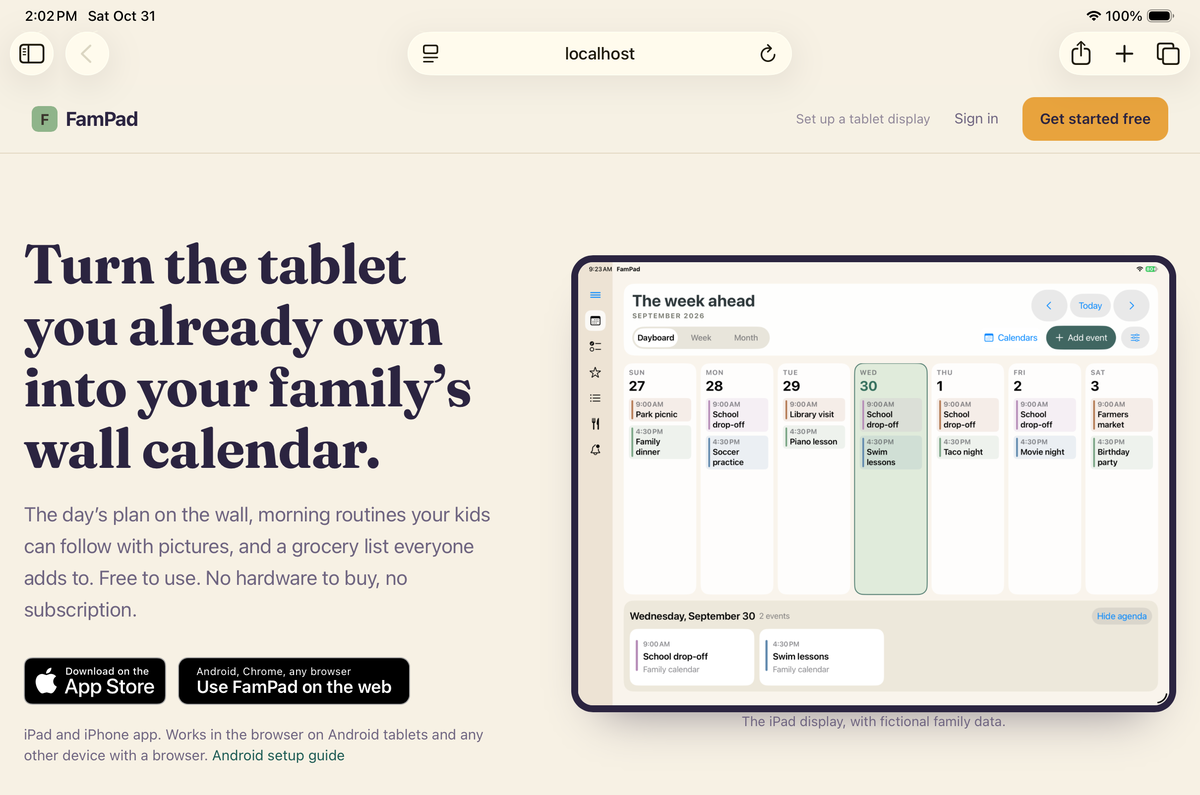
- Open Safari and go to app.fampadapp.com. Don't pair yet.
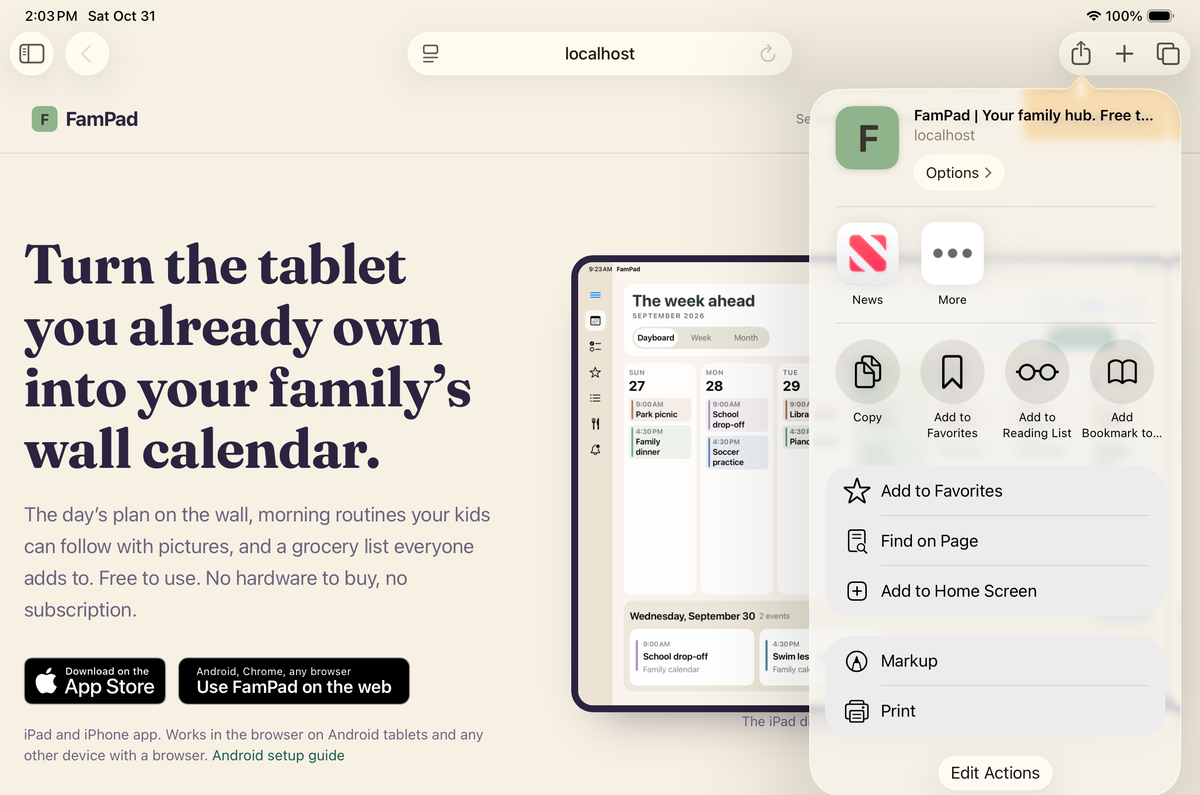
- Tap the Share button, then Add to Home Screen, then Add. On newer iPadOS versions, tap More in the Share sheet first to find it.
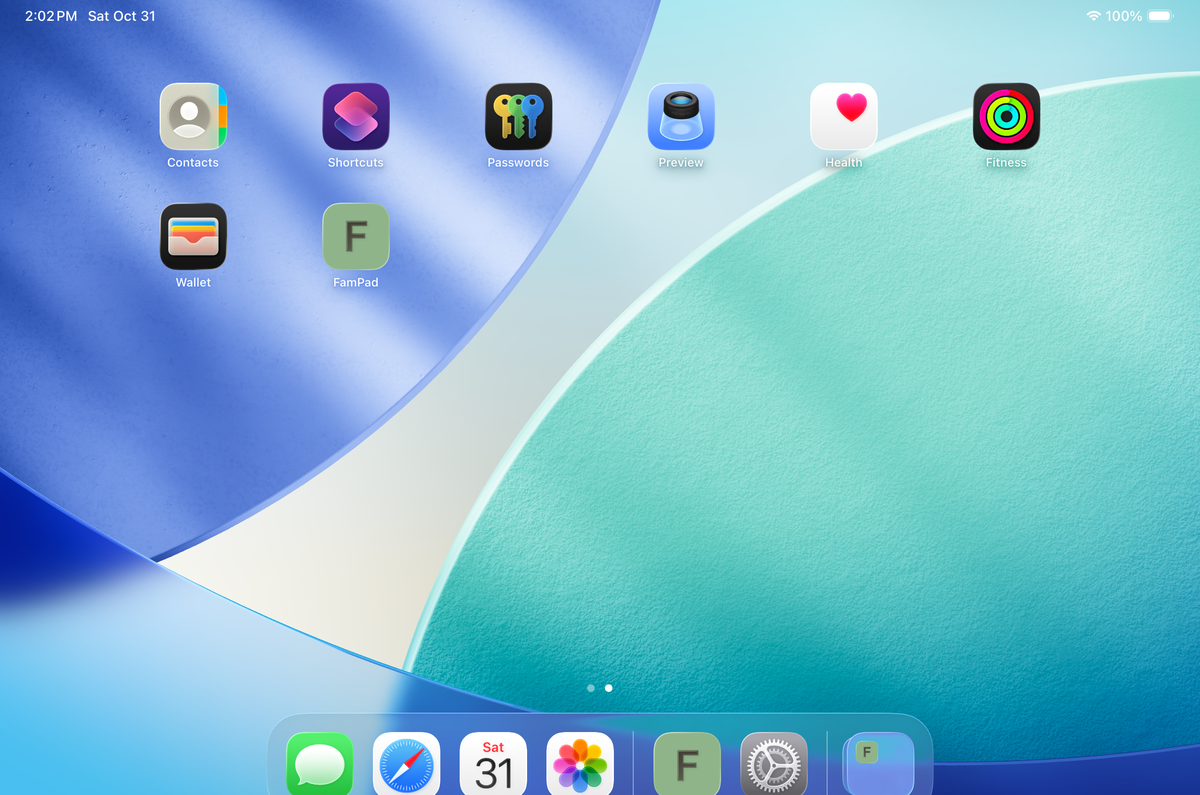
- Open FamPad from the new Home Screen icon. It opens full screen without the Safari bars.
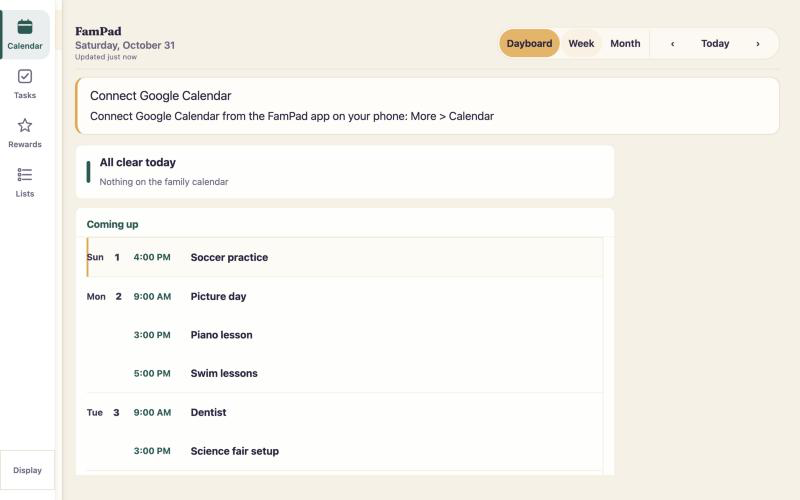
- In the app, go to app.fampadapp.com/pair if it isn't already showing. A QR code and a short code appear.
- On your phone, signed in as a parent, scan the code and confirm. The iPad shows your calendar.
- Go to Settings > Display & Brightness > Auto-Lock and choose Never.
- Optional: lock the iPad to FamPad. Go to Settings > Accessibility > Guided Access, turn it on and set a passcode. Open FamPad, triple-click the top button and tap Start. To leave, triple-click the top button and enter the passcode.
More on mounting and power: iPad wall calendar setup guide.
Android tablet (Chrome)
- Open Chrome and go to app.fampadapp.com.
- Tap the menu (three dots), then Install and create shortcut, then Install. Some tablets show Install app or Add to Home screen instead.
- Open FamPad from the new home-screen icon.
- In the app, go to app.fampadapp.com/pair if it isn't already showing. A QR code and a short code appear.
- On your phone, signed in as a parent, scan the code and confirm. The tablet shows your calendar.
- Keep the screen on. In Settings, set the screen timeout to its longest option. For a plugged-in display, turn on Stay awake in Developer options, which keeps the screen on while charging. To show Developer options, find Build number in Settings (usually under About tablet) and tap it seven times.
- Optional: lock the tablet to FamPad with app pinning. Turn on App pinning in Settings > Security (sometimes under Advanced). Open FamPad, swipe up and hold to open Overview, tap the FamPad icon, then Pin.
Menu names vary by brand. See also the Android wall calendar guide.
Any computer or touchscreen
- Open Chrome or Edge and go to app.fampadapp.com/pair. A QR code and a short code appear.
- On your phone, signed in as a parent, scan the code and confirm. The computer shows your calendar.
- Go full screen. Press F11 on Windows or Linux, or Control + Command + F on a Mac.
- Optional kiosk launch (advanced): start Chrome with the
--kioskflag and the address, for examplechrome.exe --kiosk https://app.fampadapp.comon Windows. Quit Chrome fully first. - Stop the display sleeping. Set the screen to never turn off while plugged in in your system's power settings (Windows: Settings > System > Power; Mac: System Settings > Lock Screen or Displays).
Make it full screen
- Press F11 (Windows or Linux) or Control + Command + F (Mac) to hide the browser bars. Press the same keys to leave.
- You can also run it as its own window with no address bar. In Chrome, open the menu, choose Cast, save, and share, then Install page as app (or Create shortcut and tick Open as window). In Edge, open the menu, choose Apps, then Install this site as an app.
- Menu names vary by version. If you can't find these, search the menu for "install". An installed app may need its own pairing. If it shows the pair page, pair it again.
Can't scan the QR code?
Type the short code instead.
- On your phone, open app.fampadapp.com/pair-confirm.
- Sign in as a parent if it asks.
- Type the short code shown on the display, then confirm.
Start over or change the display
There is no unpair button in the web app yet. To reset a display, clear the website data for app.fampadapp.com in that browser (or remove the installed app and clear its data). Then open app.fampadapp.com/pair and pair again. Private browsing can't stay paired.
Troubleshooting
- The screen goes to sleep. The browser may not allow FamPad to keep it awake. Set the tablet's own timeout to the longest option (iPad: Auto-Lock Never; Android: Stay awake) and keep it plugged in.
- The address bar is showing. You're in a browser tab. Open FamPad from its Home Screen icon, or go full screen on a computer.
- It asks me to sign in again. Pair from the Home Screen icon, not a browser tab, then always open it from the icon. Private browsing and clearing website data will also sign it out.
- After a restart nothing is showing. Unlock the tablet and open FamPad from its icon.
Keep it plugged in. A wall display runs all day, so leave it on its charger.
Frequently asked questions
Which tablets does this work on?
Any tablet or touchscreen computer with a current browser: iPads on iPadOS 17 or earlier, Android tablets, and Windows, Mac or Chromebook touchscreens. On an iPad that can run iPadOS 18 or later, use the FamPad app from the App Store instead.
Will the screen stay on?
FamPad asks the browser to keep the screen awake while the calendar is showing, but not every browser allows it. Set the tablet's own screen timeout to the longest option and keep it plugged in.
Do I have to sign in every time?
No. Pair the tablet once and it stays paired. If it asks again, open FamPad from the Home Screen icon rather than a browser tab, because the two keep separate sign-ins on an iPad.
Will it reopen after a restart?
No. A browser app cannot start itself. After a restart, unlock the tablet and open FamPad from its icon.
Not ready to sign up? Look around the live demo, no account needed.